
The setup network is missing
Give the controller up to a minute to start. Look for SenhusAquarea in your phone's Wi-Fi settings. If the controller has already joined your Wi-Fi, look for senhus-connect-aquarea- in your router's device list. If the setup network appears but the page does not open, join it and browse to http://192.168.4.1.
Home Assistant cannot find the device
Make sure Home Assistant can reach the controller on your home network, then add ESPHome manually with the controller's IP address. If Home Assistant still asks for a key after an update from an older encrypted Aquarea build, remove that Aquarea entry and add the device again.
Readings are missing or settings do not change
- Open the controller's IP address in a browser. If ESP Uptime is updating but Heat Pump Link is disconnected, Wi-Fi is working and the controller is waiting for a reply from the heat pump. Isolate power before checking the CN-CNT connection.
- If the link is connected, compare the tank and water temperatures with the Panasonic controller. Zero water flow can be normal while the pump is idle.
- After changing a setting, give the heat pump about 20 seconds to report it back. If it still differs, check the setting and its range against the Panasonic controller.
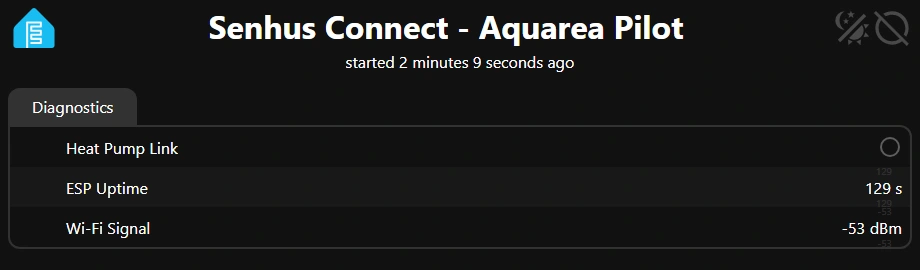
Example of a controller reachable over Wi-Fi while waiting for a heat-pump reply.
If you need help, contact Senhus with your indoor-unit model, what you tried and any fault code shown. Keep CN-CNT connected and copy about one minute of the live log from the browser dashboard. Leave your Wi-Fi password out of messages and screenshots.
Update firmware by USB
- Use the Aquarea
.binfile supplied by Senhus. Turn off power to the heat pump and disconnect CN-CNT before plugging in USB. - Connect the controller to a computer with a USB data cable. Open ESPHome Web in Chrome or Edge, choose Connect → Install and select the supplied
.binfile. - If the port doesn't appear, hold BOOT, tap RESET, then release BOOT and try connecting again.
- Unplug USB before reconnecting CN-CNT. Follow Initial setup if you need to join Wi-Fi again.
