
Firmware update · 15 November 2026
Adds Defrosting status and Frost Protection (8°C / 10°C) for compatible Panasonic models.
| Purchase date | Update | Firmware file |
|---|---|---|
| Before 1 June 2026 | Contact us for your update | Request your file |
| 1 June – 15 November 2026 (inclusive) | Update to add both features | Download Wi-Fi update (.bin) |
| After 15 November 2026 | No update needed — both features included | — |
Unsure of your purchase date? Contact Senhus for the correct file.
Update over Wi-Fi (OTA)
Recommended: update over Wi-Fi to keep your existing settings. Download the file for your purchase date above, and make sure your Senhus Connect is online. Use a computer or phone on the same network as the adapter.
-
In Home Assistant, go to Settings → Devices & services → Devices and open your Senhus Connect device. If you renamed it, look for the name you gave it.
-
Under Device info, click Visit to open the adapter’s web page.

-
Scroll to OTA Update, click Choose File, and select the Wi-Fi update
.binfile. Click Update once.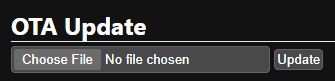
-
Keep the adapter powered and the page open until the upload finishes. The adapter will restart. Return to its device page in Home Assistant and wait for it to reconnect.
Check the update: the device page should now include Defrosting, Frost Protection, and Frost Protection Temperature. Defrosting shows the heat pump’s reported status; it does not need to be on to confirm the update.
USB installation (erases settings)
Use this option if you want to install the firmware over USB instead.
This erases all data and settings on the adapter, including Wi-Fi credentials. You’ll need to set up the adapter again afterward.
For adapters bought 1 June – 15 November 2026 (inclusive): Download factory firmware (.bin). For an earlier purchase or an unknown date, contact Senhus for your file.
- Connect the adapter to your computer with a USB data cable.
- Open ESPHome Web in Chrome or Edge. Click Connect and select the adapter’s serial port.
- Choose Install, select the factory
.binfile, and confirm the installation. Keep the USB cable connected until it finishes. - Follow the Senhus Connect initial setup guide to configure Wi-Fi and reconnect the adapter to Home Assistant.
